¶ Customer-side preflight
Preflight can only be used after you have configured the file upload target to be AWS S3.
Print Science Preflight can analyze PDF files that your customers upload to detect serious problems that could cause poor quality printing results. wp2print can perform this analysis immediately after the customer uploads their file(s). If the preflight analysis detects a serious problem, wp2print can prevent the product from being added to the shopping cart.
¶ Problems preflight can detect
The most common problems that Print Science Preflight will detect are:
- Missing fonts
- Small font sizes
- Low-resolution images
- Incorrectly defined page dimensions
Customer-side preflight analysis is configured at the product level. You will see the following configuration options in the File source tab:
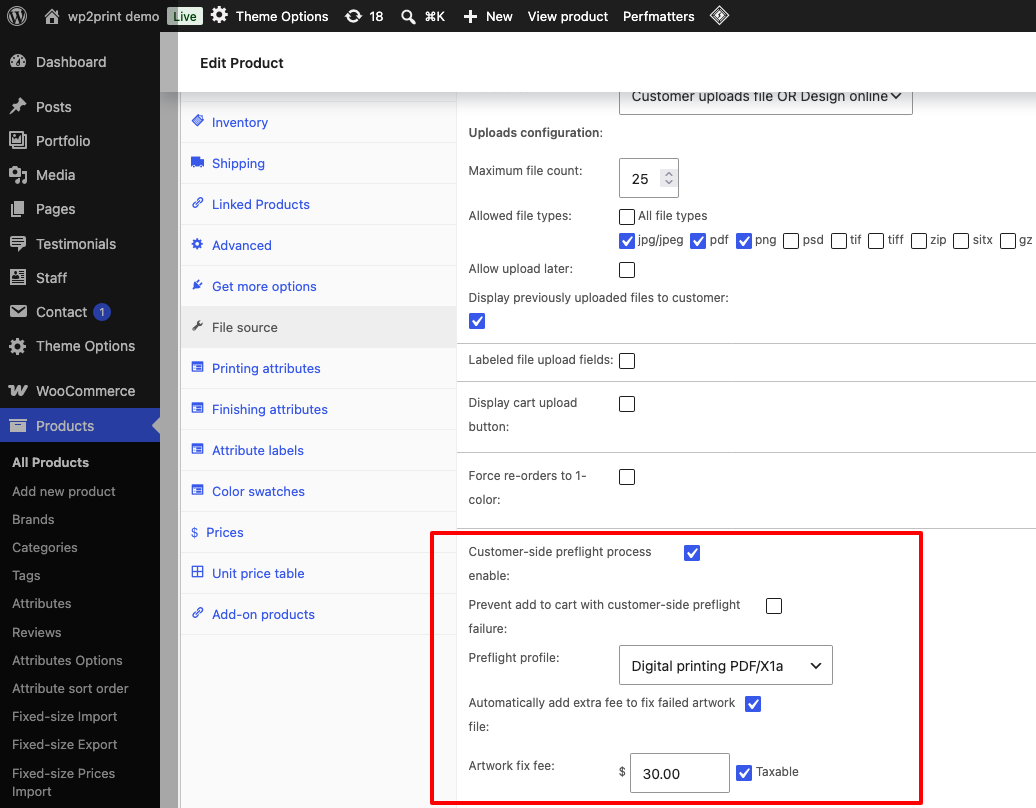
The table below describes each configuration field:
| Field | Description |
|---|---|
| Customer-side preflight process enable | Enables or disables preflight analysis for this product. When checked, uploaded files are automatically analyzed as soon as the customer uploads them. |
| Preflight profile | The preflight profile to use when analyzing uploaded files. Different profiles apply different sets of checks (for example, Digital printing PDF/X1a). Profiles are managed in the Preflight tab of the wp2print settings. |
| Prevent add to cart with customer-side preflight failure | When checked, a customer whose uploaded file fails preflight cannot add the product to the shopping cart and must cancel the purchase flow. When unchecked, the customer is warned about the problem but can choose to continue with the purchase. |
| Automatically add extra fee to fix failed artwork file | When checked, a fixed fee is automatically added to the shopping cart total whenever a customer's uploaded file fails preflight. This fee compensates the printing company for the time required to correct the file before printing. The fee is only applied on preflight failure; it is not added when the file passes. |
| Artwork fix fee | The fixed dollar amount that will be added to the cart when a preflight failure is detected. Check the Taxable checkbox if this fee should be subject to tax. |
| Outcome of preflight analysis | Prevent add to cart with customer-side preflight failure | Automatically add extra fee to fix failed artwork file | Options for customer | Extra fee added to cart? |
|---|---|---|---|---|
| PASS | FALSE | FALSE or TRUE | Customer continues with purchase flow | No |
| PASS | TRUE | FALSE or TRUE | ||
| FAIL | FALSE | FALSE | Customer can choose to Cancel or Continue purchase flow | No |
| FAIL | FALSE | TRUE | Customer can choose to Cancel or Continue purchase flow | Yes — fee added if customer continues |
| FAIL | TRUE | FALSE | Customer must Cancel purchase flow | No |
| FAIL | TRUE | TRUE | Customer must Cancel purchase flow | No |
¶ Preflight PASS
The image below shows the customer-side interface when the preflight result is PASS:
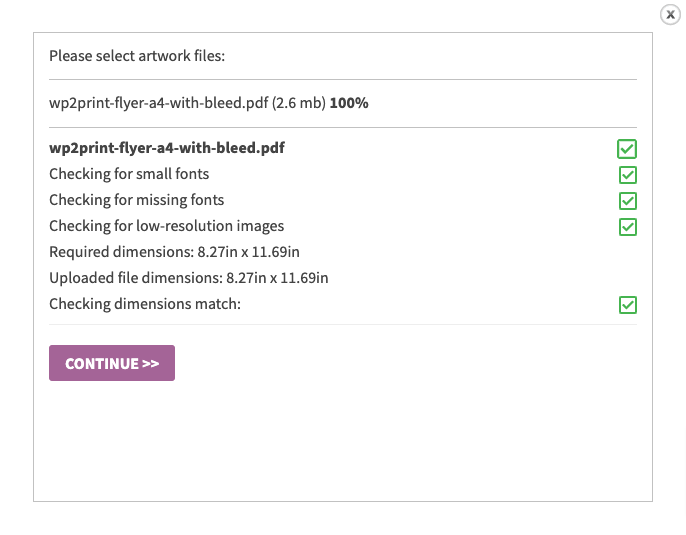
Customer continues with purchase flow
¶ Preflight FAIL
The images below show the customer-side interface when the preflight result is FAIL. Depending on the setting of Prevent add to cart with customer-side preflight failure, the customer will either be allowed to continue to the cart or will be blocked from doing so:
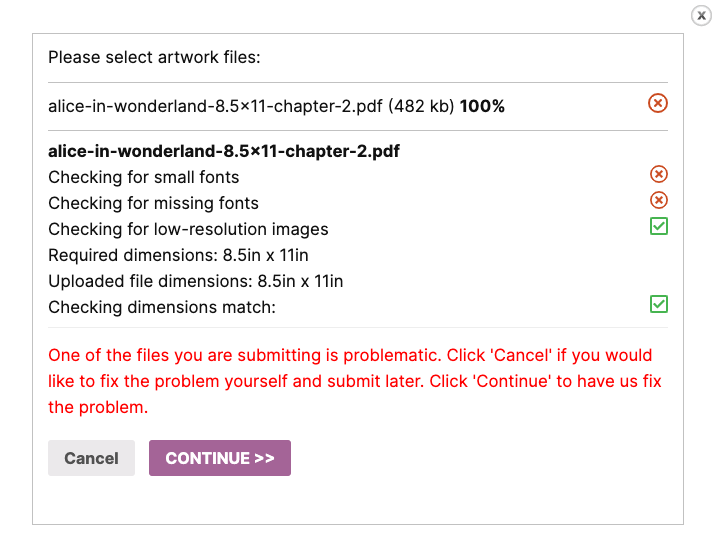
Customer can choose to Cancel or Continue with purchase flow
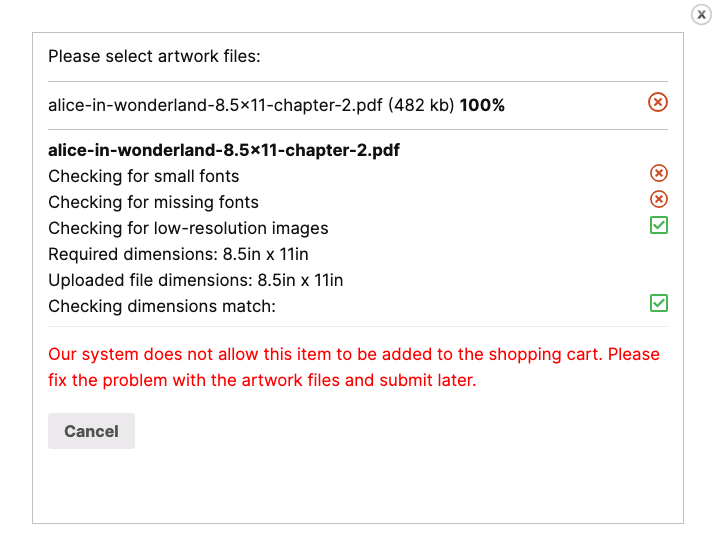
Customer must Cancel purchase flow
¶ Artwork fix fee
When Automatically add extra fee to fix failed artwork file is enabled and the customer's file fails preflight, wp2print displays a message informing the customer that a fee will be charged for the printing company to correct the file. The customer can click Cancel to withdraw and fix the file themselves, or click Continue to proceed with the purchase and accept the fee.
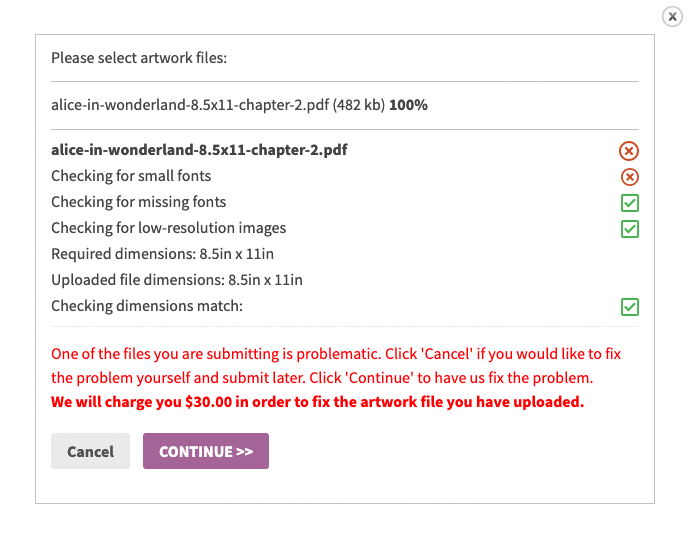
Customer is informed of the artwork fix fee and can choose to Cancel or Continue
If the customer clicks Continue, the artwork fix fee is automatically added in the shopping cart totals, as shown below:
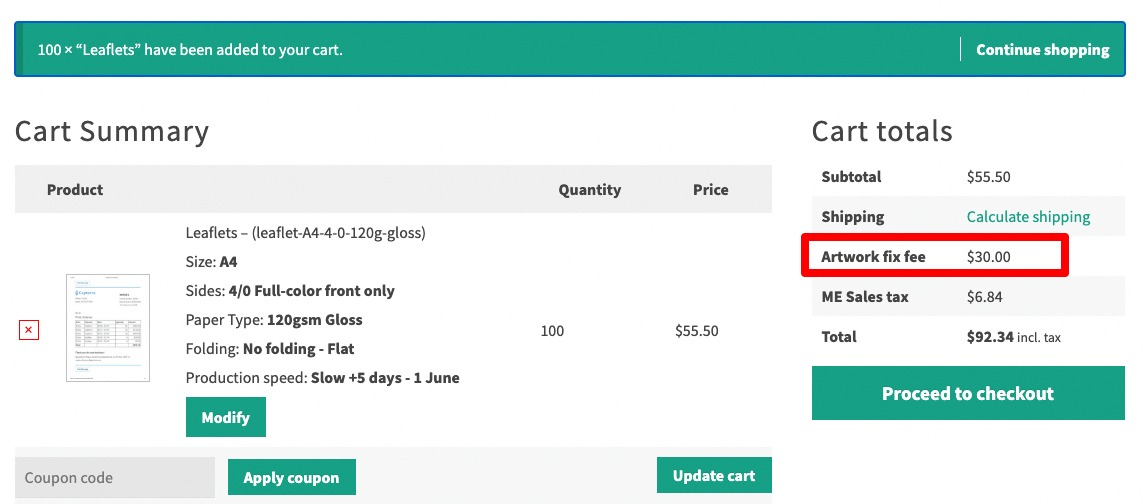
The Artwork fix fee appears in the cart totals