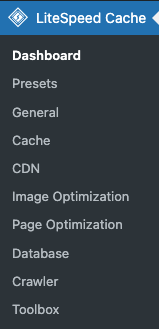
Here are our recommended settings for the LiteSpeed Cache plugin. Some of these settings are accessed using the Cache link in the left-side sub-menu located underneath LiteSpeed Cache. Other settings are accessed using the Page optimization link in the left-side sub-menu located underneath LiteSpeed Cache.
¶ Litespeed Cache configuration
The settings below are accessed using the Cache link in the left-side sub-menu located underneath LiteSpeed Cache.
¶ Cache tab
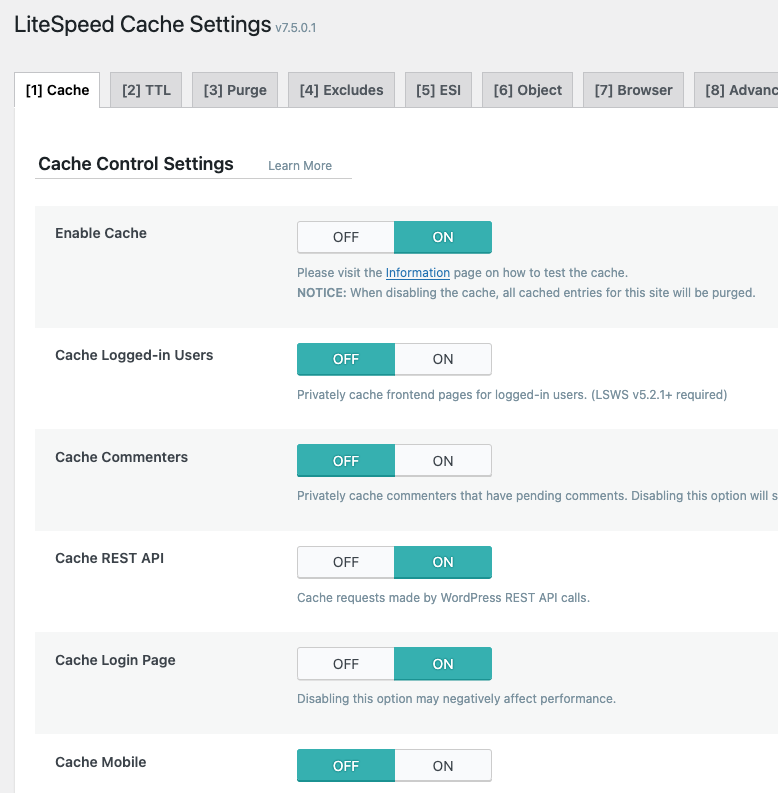
At the top of the Cache tab is a slider that controls whether or not caching is active. This must be set to On.
¶ Excludes tab
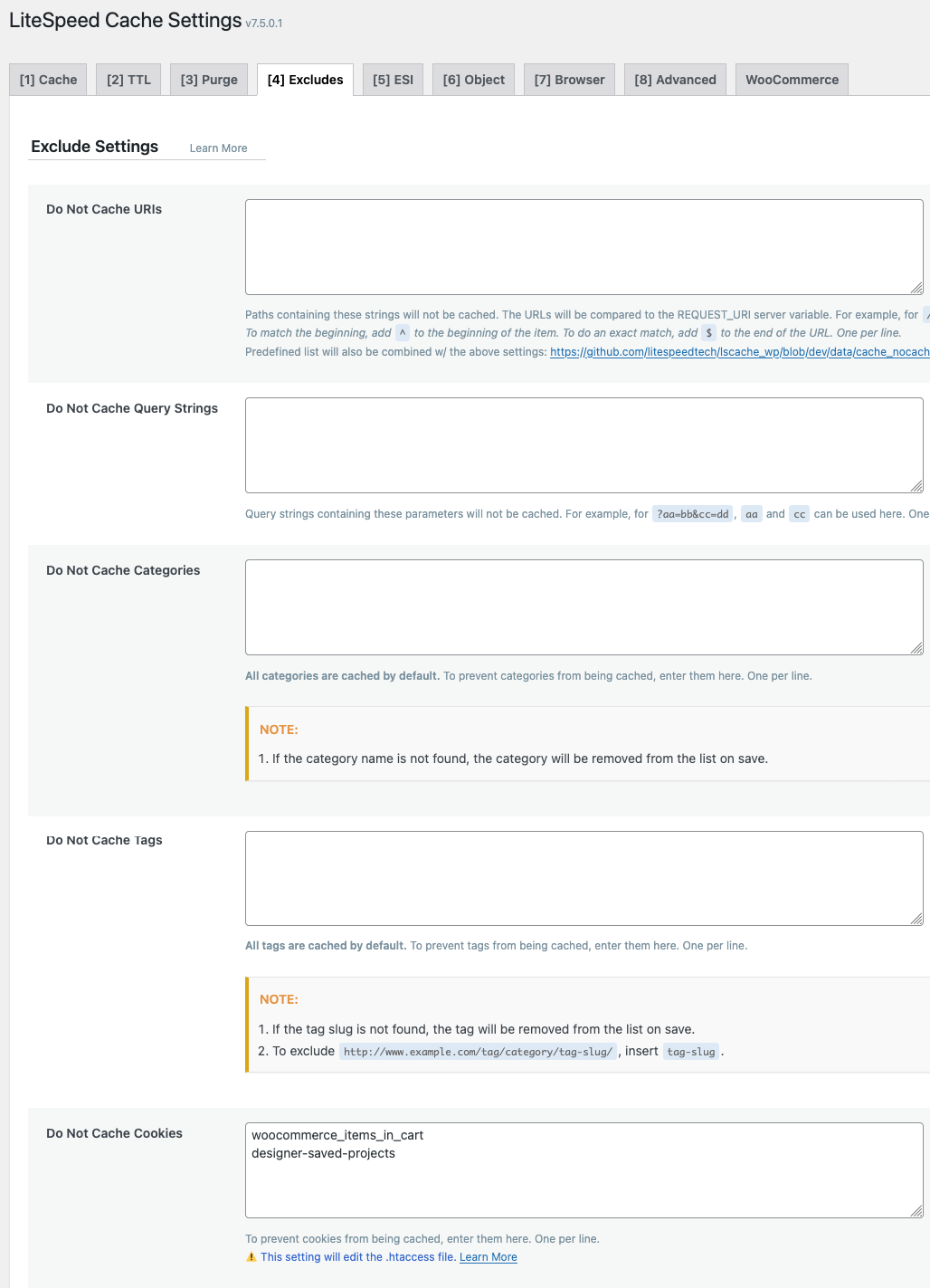
In the Excludes tab, locate the section with label Do Not Cache Cookies. Enter the 2 cookie names shown below then Save Changes:
woocommerce_items_in_cart
designer-saved-projects
¶ ESI tab
The ESI feature cannot be implemented without the QUIC Cloud CDN active on your site. Contact Print Science if you would like to implement this.
ESI (Edge Side Includes) lets a cached page still contain small pieces of content that are generated fresh on every request. Instead of an all-or-nothing choice between "cache the whole page" and "don't cache it," ESI marks specific fragments as dynamic holes — LiteSpeed serves everything else straight from cache, but re-runs the small dynamic piece for every visitor.
In the ESI tab:
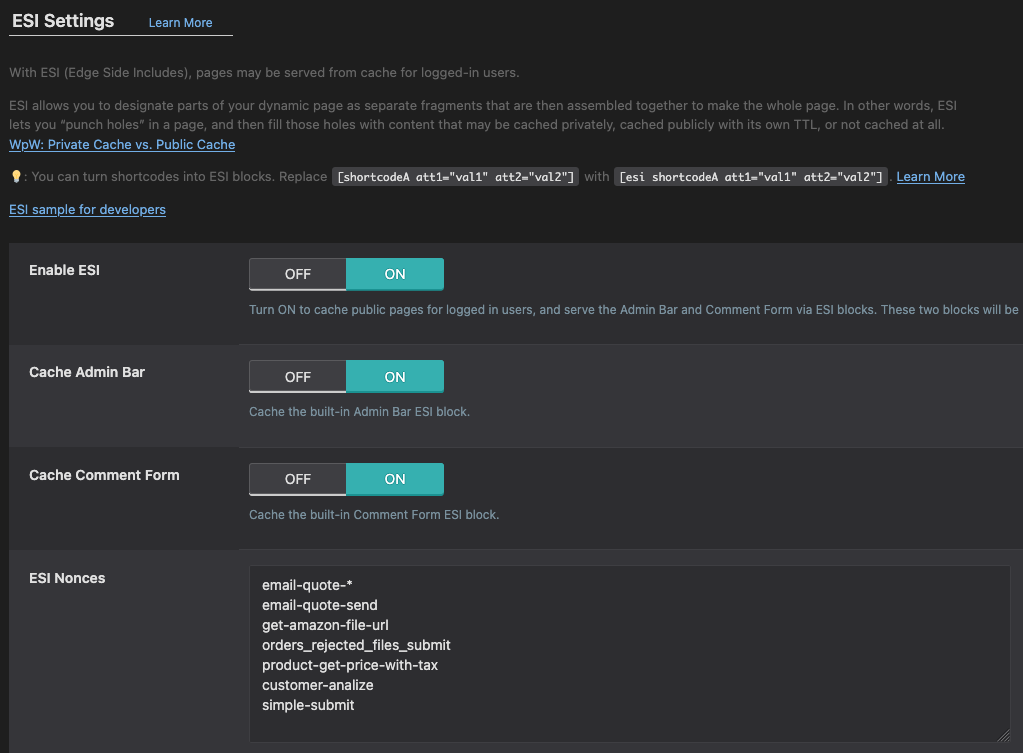
- Set Enable ESI to On.
- In the ESI Nonces field, add the following nonce names, one per line. These correspond to the customer-facing AJAX actions used by wp2print:
product-get-price-with-tax
customer-analize
get-amazon-file-url
simple-submit
email-quote-send
email-quote-*
orders_rejected_files_submit
Below is a screenshot of the ESI tab of the Cache configuration:
¶ Object tab
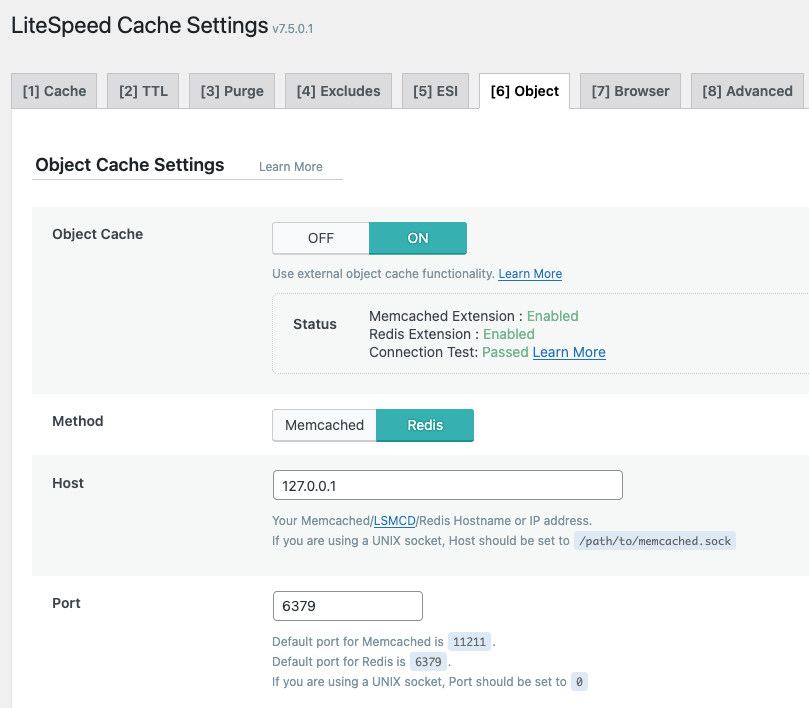
In the Object tab, we configure the site to use the REDIS object cache. The following settings should be configured as shown below:
- Enable the Object cache by settings slider to On
- Configure the following value for Method: Redis
- Configure the following value for Host: 127.0.0.1
- Configure the following value for Port: 6379
¶ Page Optimization configuration
The settings below are accessed using the Page Optimization link in the left-side sub-menu located underneath LiteSpeed Cache.
¶ CSS Settings tab
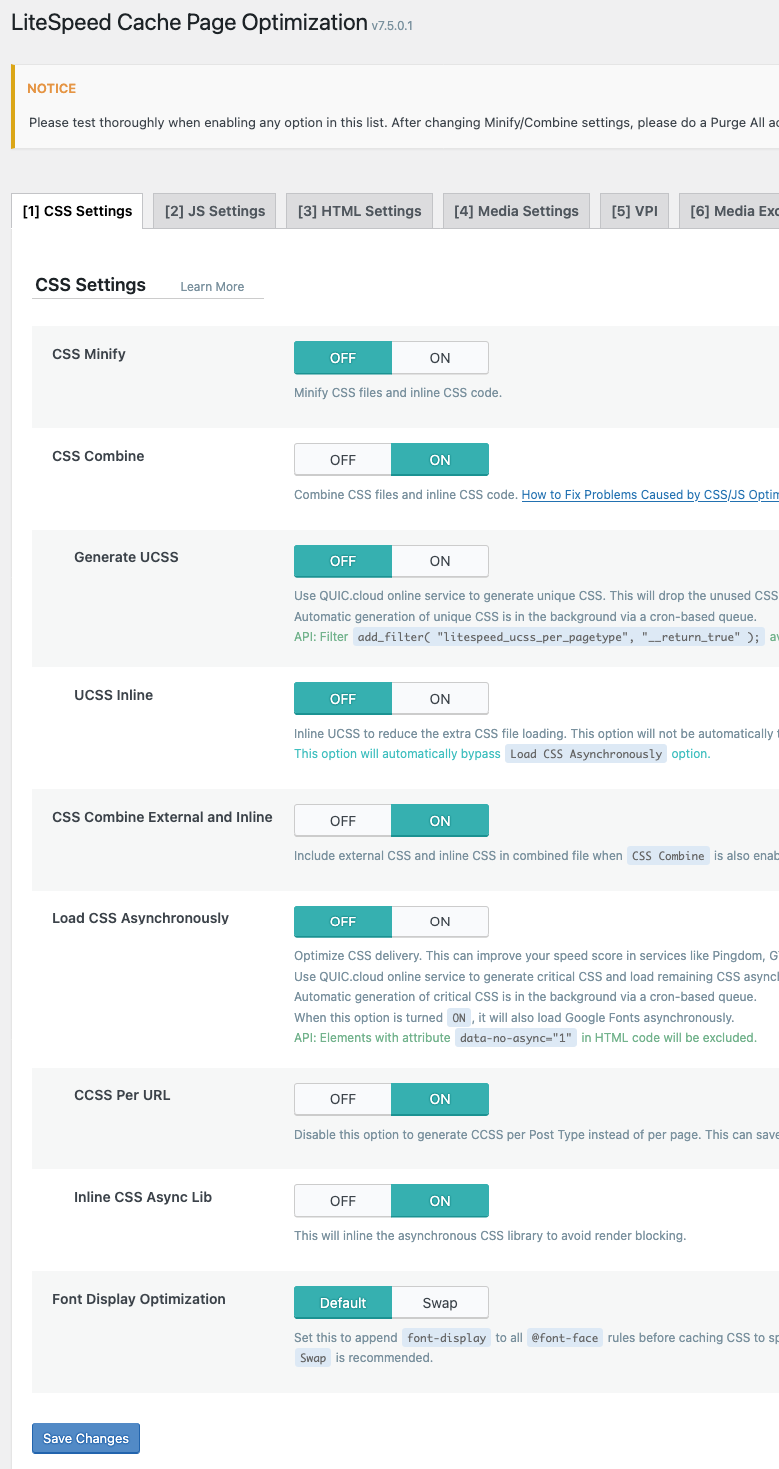
The screenshot below illustrates a set of settings that functions well with wp2print. We recommend against enabling the Minify function:
¶ JS Settings tab
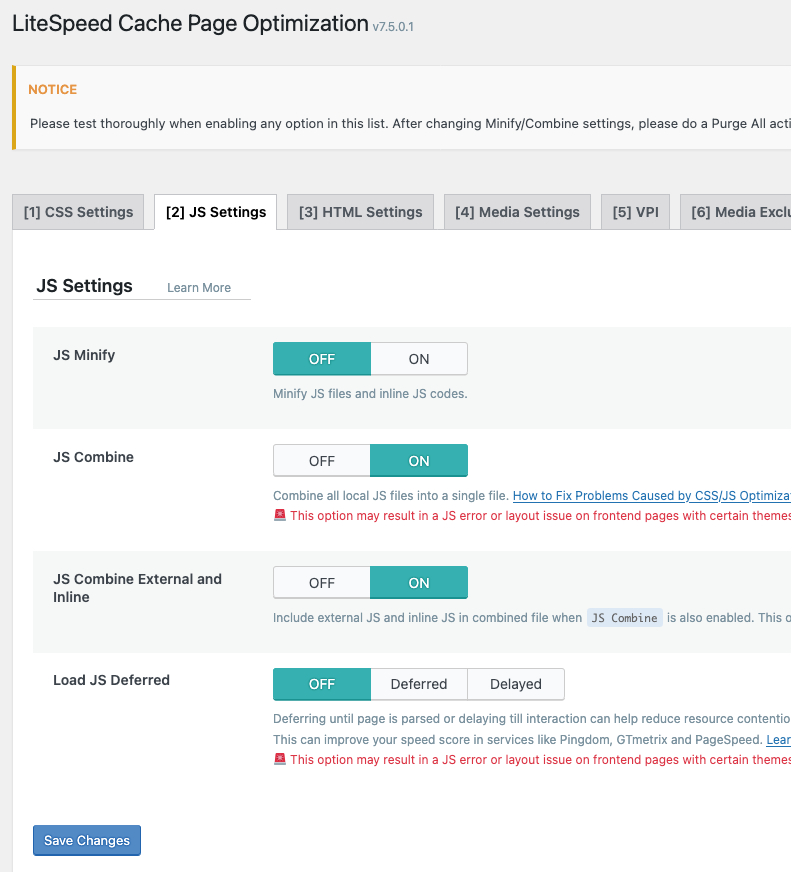
The screenshot below illustrates a set of settings that functions well with wp2print. We recommend against enabling the Minify function:
¶ Tuning
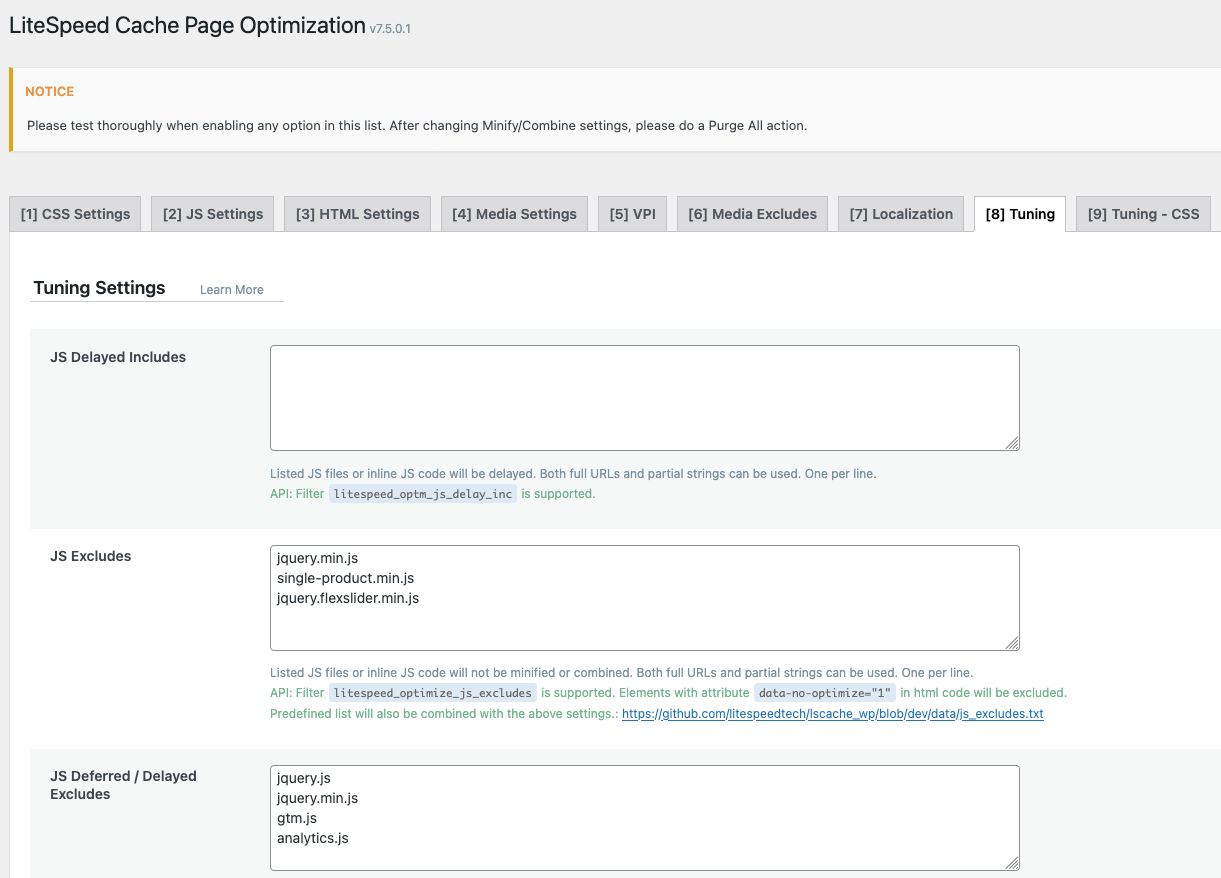
In the Tuning tab, we must configure LiteSpeed cache to exclude the following JS files:
JS Excludes:
single-product.min.js
jquery.flexslider.min.js
jquery.min.js
jquery.js
¶ Tuning CSS
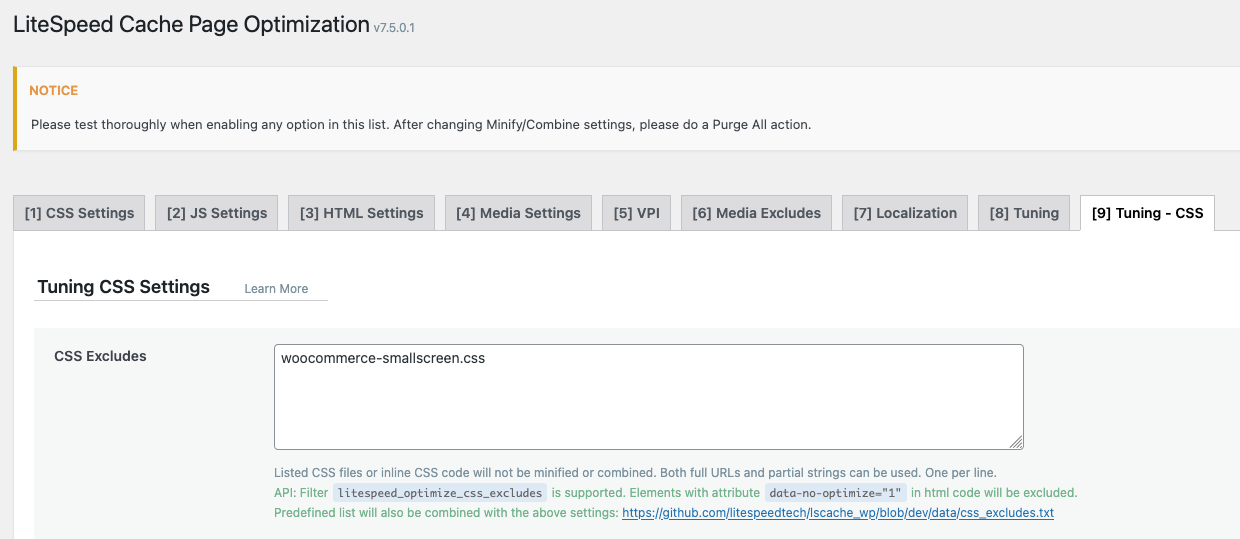
In the Tuning CSS tab, we must configure LiteSpeed cache to exclude the following CSS files:
CSS Excludes:
woocommerce-smallscreen.css
¶ Purging the cache
This video will demonstrate cache purging the LiteSpeed Cache. This is an easy and important process which will avoid the problem of your customers seeing old data that is stored in the cache.