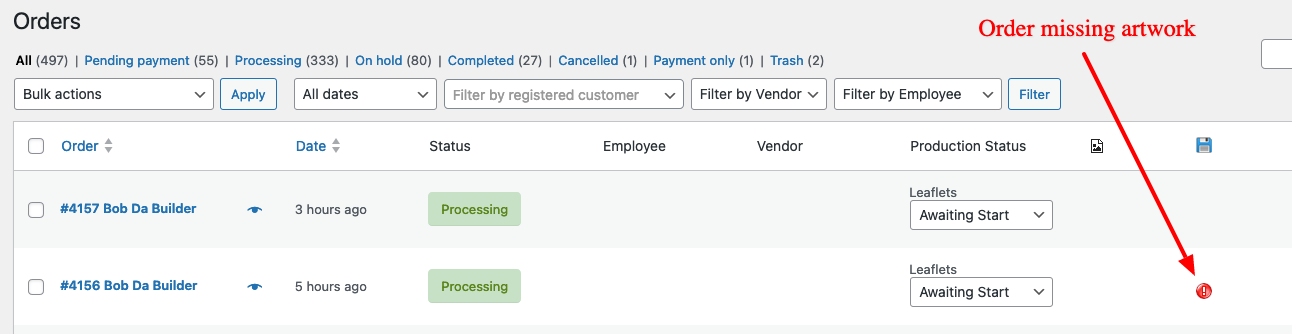
Sometimes, the artwork files customers submit to you as part of an order contain serious problems that will prevent you from printing the file. As an administrator, you can reject a specific artwork file.
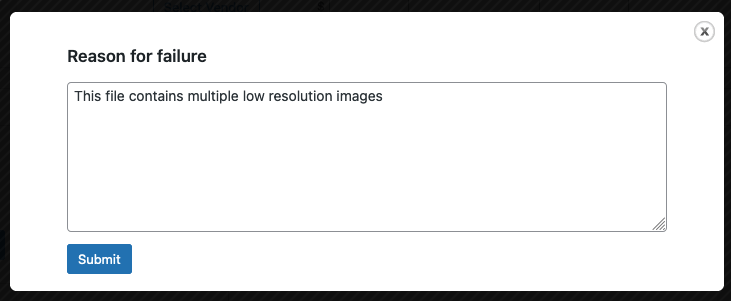
When you reject an artwork file, wp2print will prompt you to enter a brief explanation of why you are rejecting the artwork file. wp2print will then send an email to the customer explaining that the file has been rejected and the reasons why. Finally, wp2print will prompt the customer to upload new artwork to replace the rejected artwork.
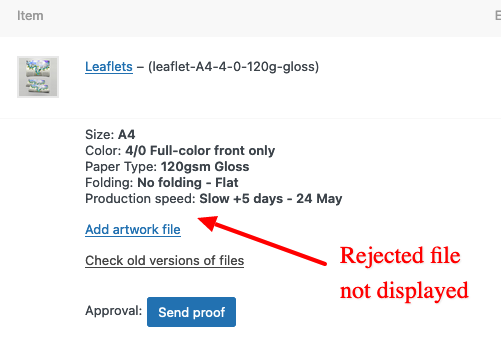
Once you have rejected an artwork file, wp2print will no longer display the artwork file in order detail page for the order. Also, wp2print will mark the order as “missing artwork". In this way, everyone will know that the order is not ready to be placed into production.
¶ Rejecting an artwork file
In the Preflight section of the order detail page, you will a list of the all the artwork files attached to an order. Next to each file, you will a button Reject Artwork.
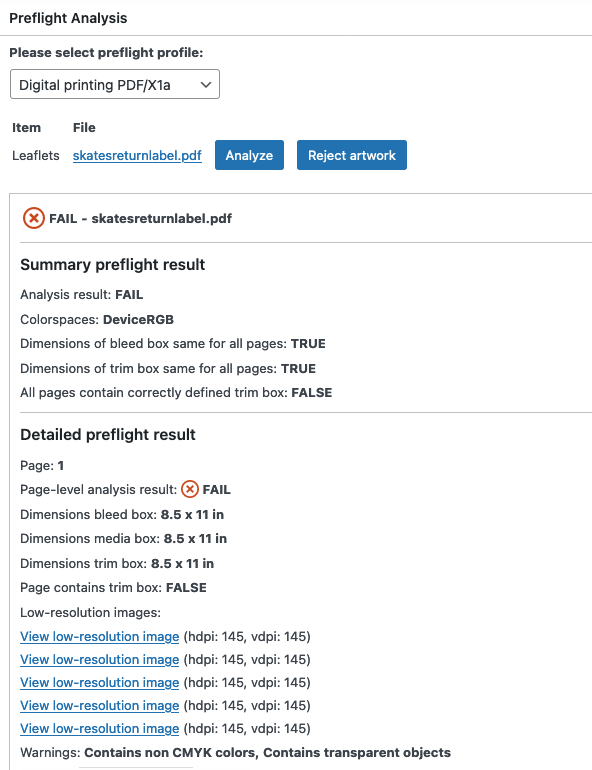
When you click the button Reject Artwork, the system will display a pop-up window where you can enter a brief explanation of the reasons for rejecting the artwork file.
¶ Customer notification
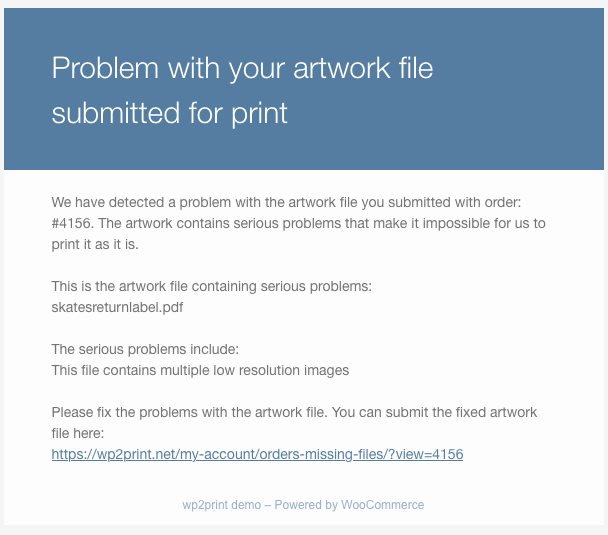
When you reject an artwork file, the customer will receive an email explaining that an artwork file is not adequate for printing. This email will include details about the OrderID, the name of the artwork file as well as the brief explanation of the reasons the file was rejected. Finally, the email will contain a link to the page where the customer can submit a replacement artwork file.
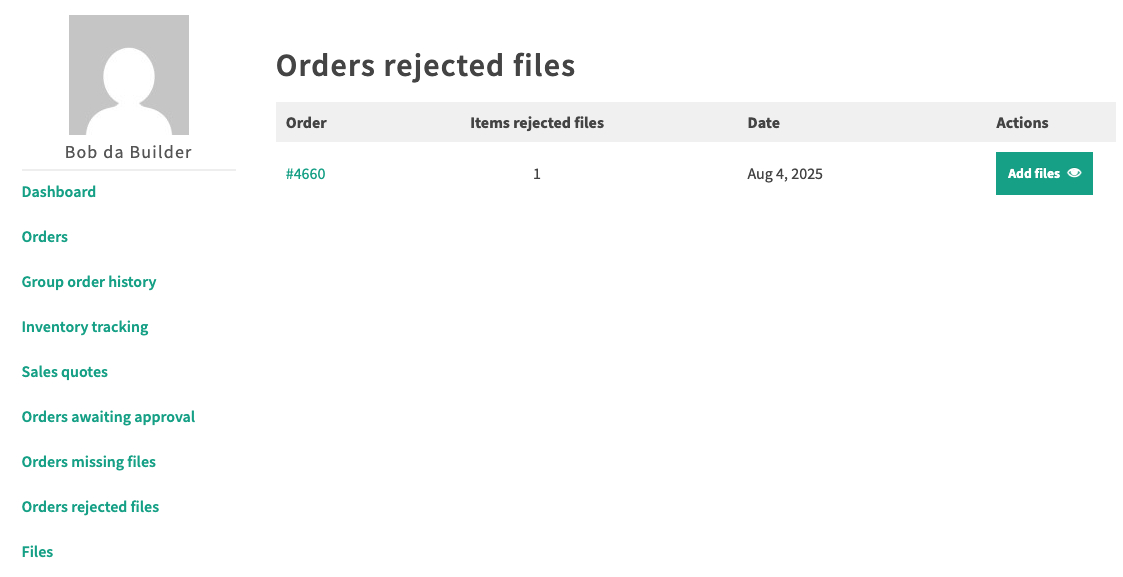
After the customer has fixed the problems with the artwork file, the customer can submit replacement artwork files through the Order Rejected Files tab in the My Account page:
¶ Indicators of artwork rejection in the administrative pages
When an artwork file has been rejected, the administrative pages will display 2 clear indicators reflecting the rejection. With these 2 indicators, all administrators will know that the order is not ready to be put into production.
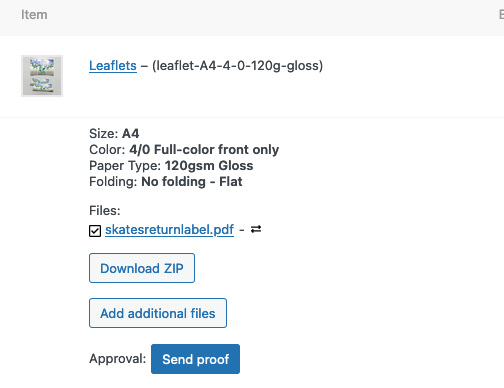
Below, the image on the left shows an order detail page prior to the artwork being rejected. It clearly displays links to the artwork files attached to the order. Once you have rejected an artwork file, wp2print will no longer display the artwork file in order detail page for the order, as shown in the image on the right. The rejected artwork file is still displayed in the section Check old versions of files:
In the Order Summary page and the Production view page, the order will display the red warning icon in the Artwork column. This indicates to all administrators that the order is missing artwork: